Tags Page
This guide applies to Scope, Thoughts, Feed, Moment, Aspect, OnFlow, and Format.
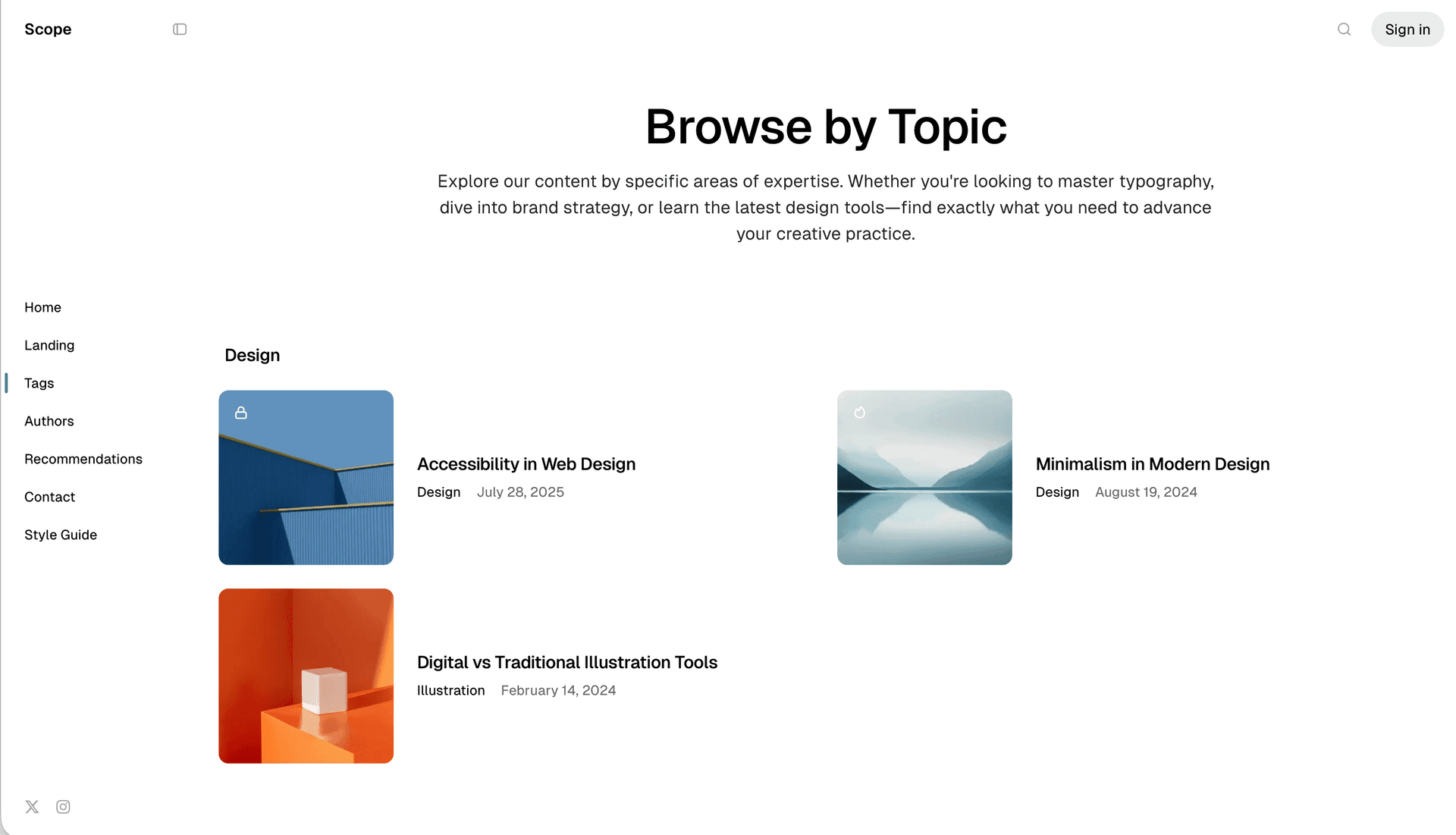
Scope
Scope comes with predefined Tags page. It contains the list of tags.
To display this page on your site, you must create it. Here’s how:
- Log in to Ghost admin
- Go to Pages, click New page
- Set the Page title
- Open the Page settings sidebar
- Specify the Page URL to
tags - Click Publish
Thoughts
Thoughts comes with predefined Tags page. It contains the list of tags.
To display this page on your site, you must create it. Here’s how:
- Log in to Ghost admin
- Go to Pages, click New page
- Set the Page title
- Open the Page settings sidebar
- Specify the Page URL to
tags - Click Publish
Feed
Feed comes with predefined Tags page. It contains the list of tags.
To display this page on your site, you must create it. Here’s how:
- Log in to Ghost admin
- Go to Pages, click New page
- Set the Page title
- Open the Page settings sidebar
- Specify the Page URL to
tags - Click Publish
Moment
Moment comes with predefined Tags page. It contains the list of tags.
To display this page on your site, you must create it. Here’s how:
- Log in to Ghost admin
- Go to Pages, click New page
- Set the Page title
- Open the Page settings sidebar
- Specify the Page URL to
tags - Click Publish
Aspect
The theme comes with predefined Tags page. It contains the list of tags.
To display this page on your site, you must create it. Here’s how:
- Log in to Ghost admin
- Go to Pages, click New page
- Set the Page title
- Open the Page settings sidebar
- Specify the Page URL to
tags - Click Publish
OnFlow
The theme comes with predefined Tags page. It contains the list of tags.
To display this page on your site, you must create it. Here’s how:
- Log in to Ghost admin
- Go to Pages, click New page
- Set the Page title
- Open the Page settings sidebar
- Specify the Page URL to
tags - Click Publish
Format
Format comes with predefined Tags page. It contains the list of tags.
To display this page on your site, you must create it. Here’s how:
- Log in to Ghost admin
- Go to Pages, click New page
- Set the Page title
- Open the Page settings sidebar
- Specify the Page URL to
tags - Click Publish
Posts List Style
The theme comes with different posts list styles for writings, tag and author pages.
- Cards
- Full
- List
- List Minimal
To change the list style, follow these steps:
- Go to Settings → Site → Design & branding
- Click Customize → Theme → Site wide
- Change the list style in Posts list style setting