Adding Custom CSS & JS: Code Injection and Custom Assets
You can customize your Ghost theme by adding CSS and JavaScript. The recommended way is using Ghost’s built-in Code Injection feature, but you can also use custom asset files. Here’s how both methods work:
Method 1: Ghost Code Injection (Recommended)
Code Injection is the safest way to add custom CSS/JS—your changes won’t be lost during theme updates.
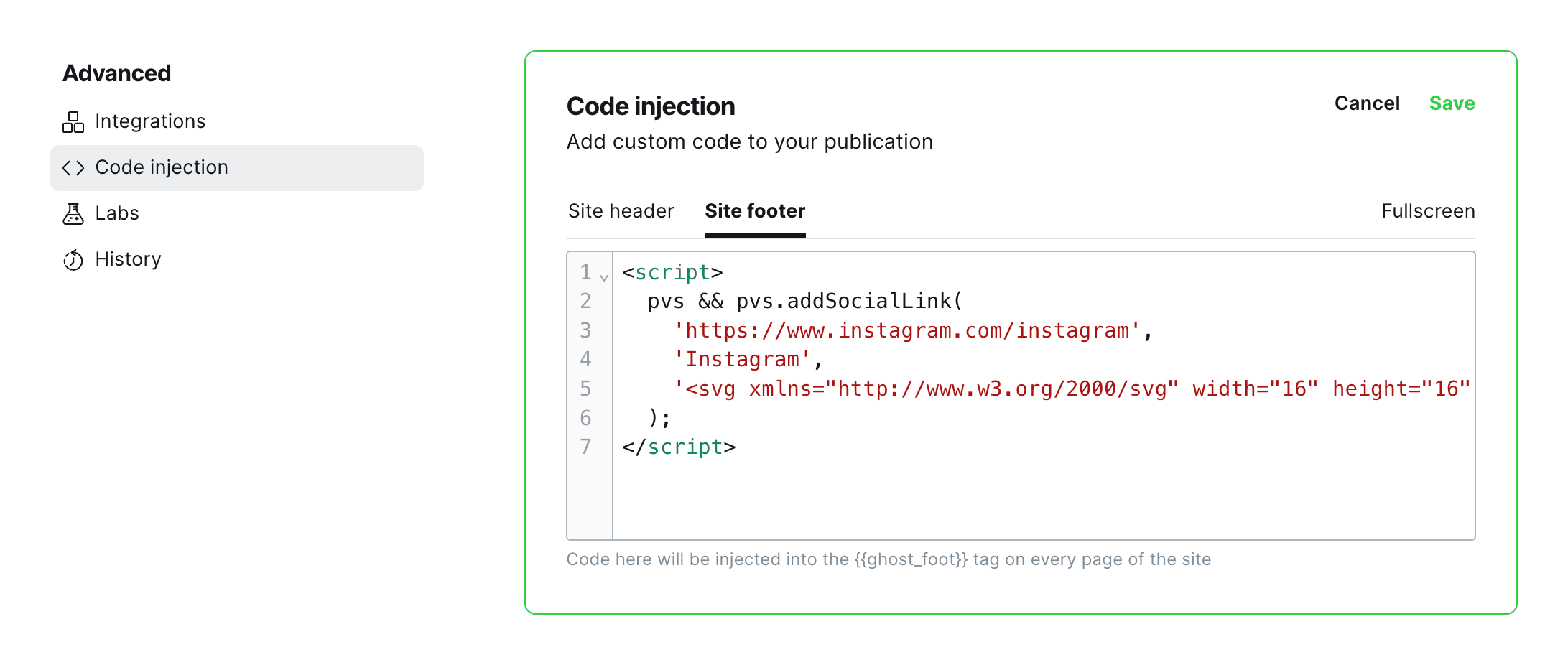
Add Custom CSS
-
Log in to Ghost Admin.
-
Go to Settings → Advanced → Code injection and click Edit.
-
Paste your CSS in the Site header editor, for example:
<style>
.footer-copyright > span {
    display: none;
}
</style>
Add Custom JS
-
Go to Settings → Advanced → Code injection and click Edit.
-
Paste your JS in the Site footer editor, for example:
<script>
console.log("Hello from Code Injection!");
</script>
Method 2: Custom Asset Files (Alternative)
You can also add code to /assets/custom.css or /assets/custom.js in your theme folder.
How to Use
- Open
/assets/custom.cssor/assets/custom.jsin a text editor. - Add your custom code.
- Save the file.
Important: Changes made directly to custom asset files may be lost when you update your theme. Always back up your custom files before updating.
Preserving Custom Asset Changes
- Back up your
custom.cssandcustom.jsbefore updating your theme. - After updating, compare your backups and reapply any changes as needed.
Which Method Should I Use?
We strongly recommend using Ghost’s Code Injection feature:
- Your changes survive theme updates.
- You can manage everything from the Ghost admin panel.
- Less risk of breaking your theme.
Use custom asset files only if you have advanced needs that Code Injection can’t cover—and always keep backups!