Navigation
With Ghost you can add, edit and reorder navigation items. This guide will show you how to create and manage navigation items in your Ghost site.
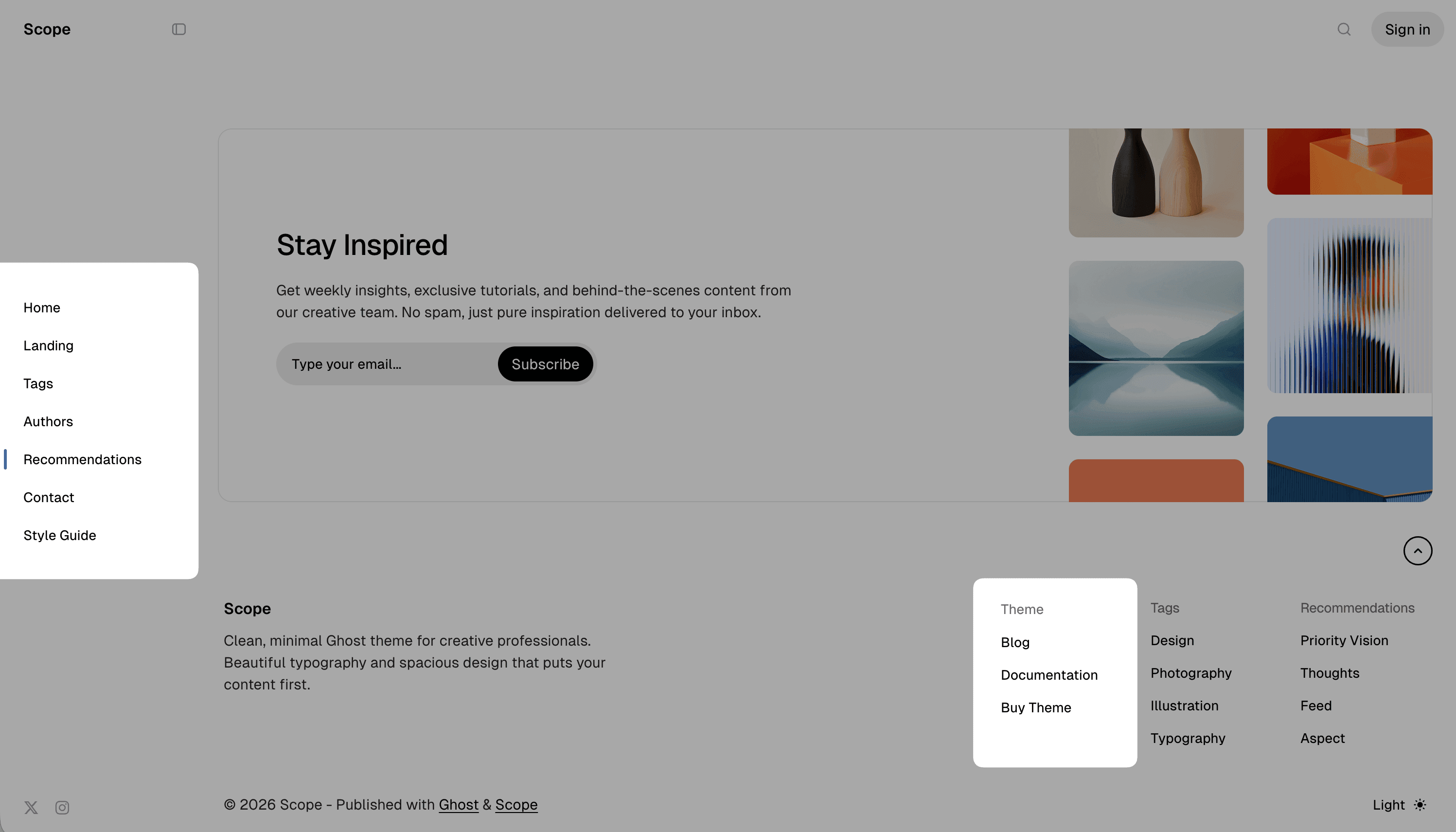
The Scope theme supports Primary and Secondary navigation.
- Primary navigation is displayed in the sidebar
- Secondary navigation is displayed as additional links
Manage navigation items
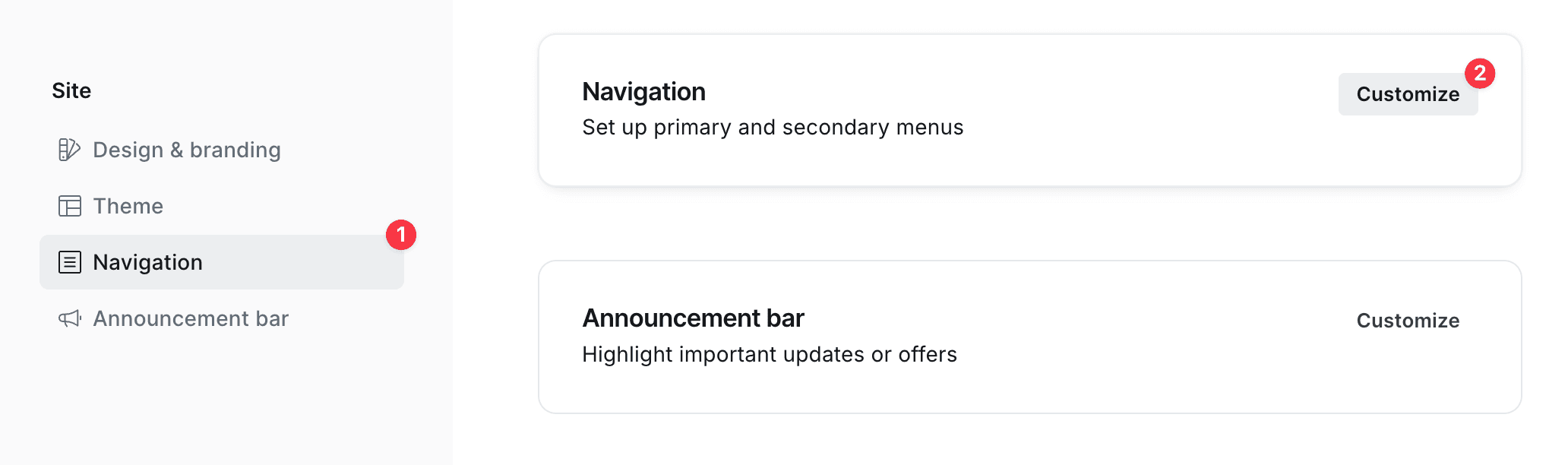
To manage navigation items, follow these steps:
- Go to Settings → Site → Navigation
- Click Customize
Dropdowns
Our theme supports dropdown menus in navigation, allowing you to organize related links under a parent item. This is useful for creating more complex navigation structures without cluttering the menu.
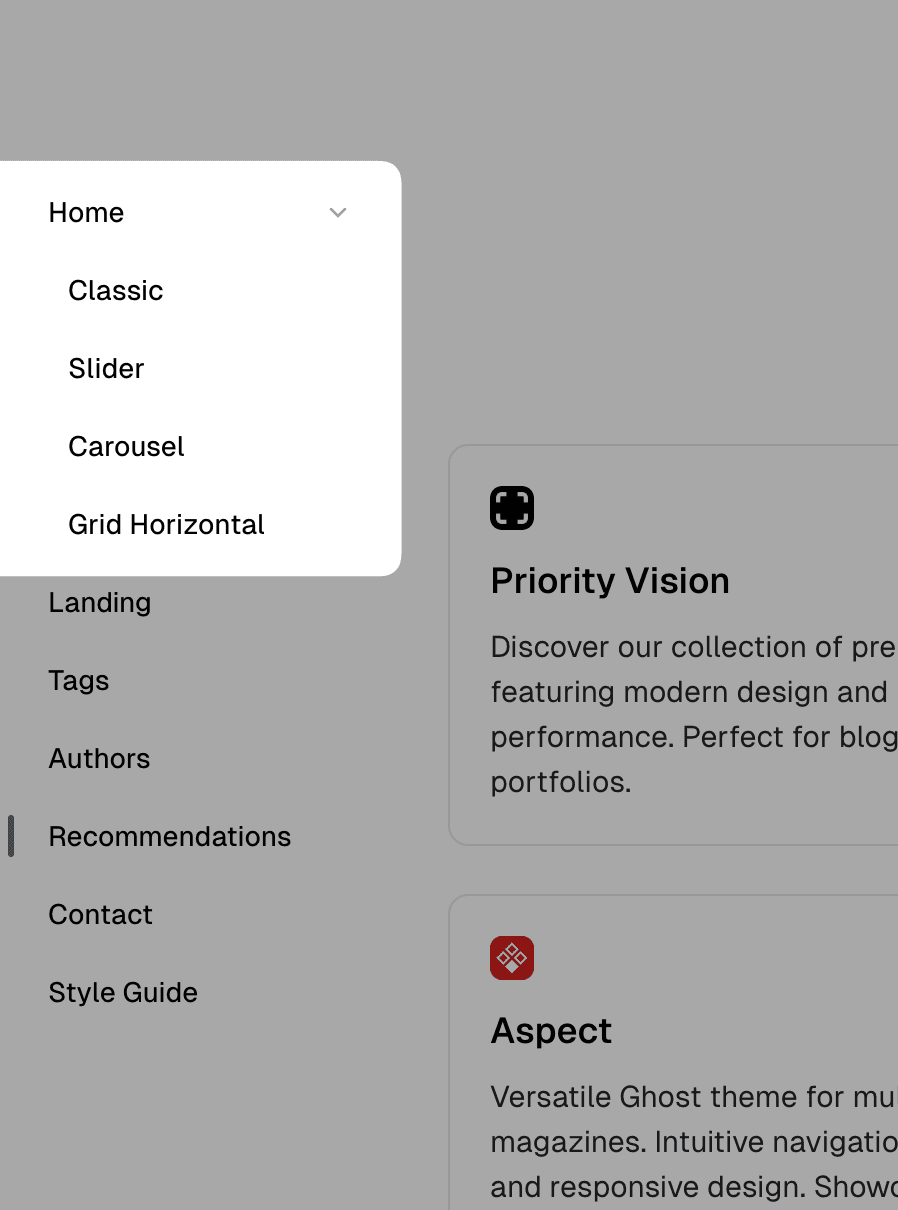
To create a dropdown menu:
- Add a parent item that will serve as the dropdown trigger
- Add child items by creating navigation items with labels that start with
-(dash followed by a space)
The items with labels starting with - will be nested under the previous regular navigation item.
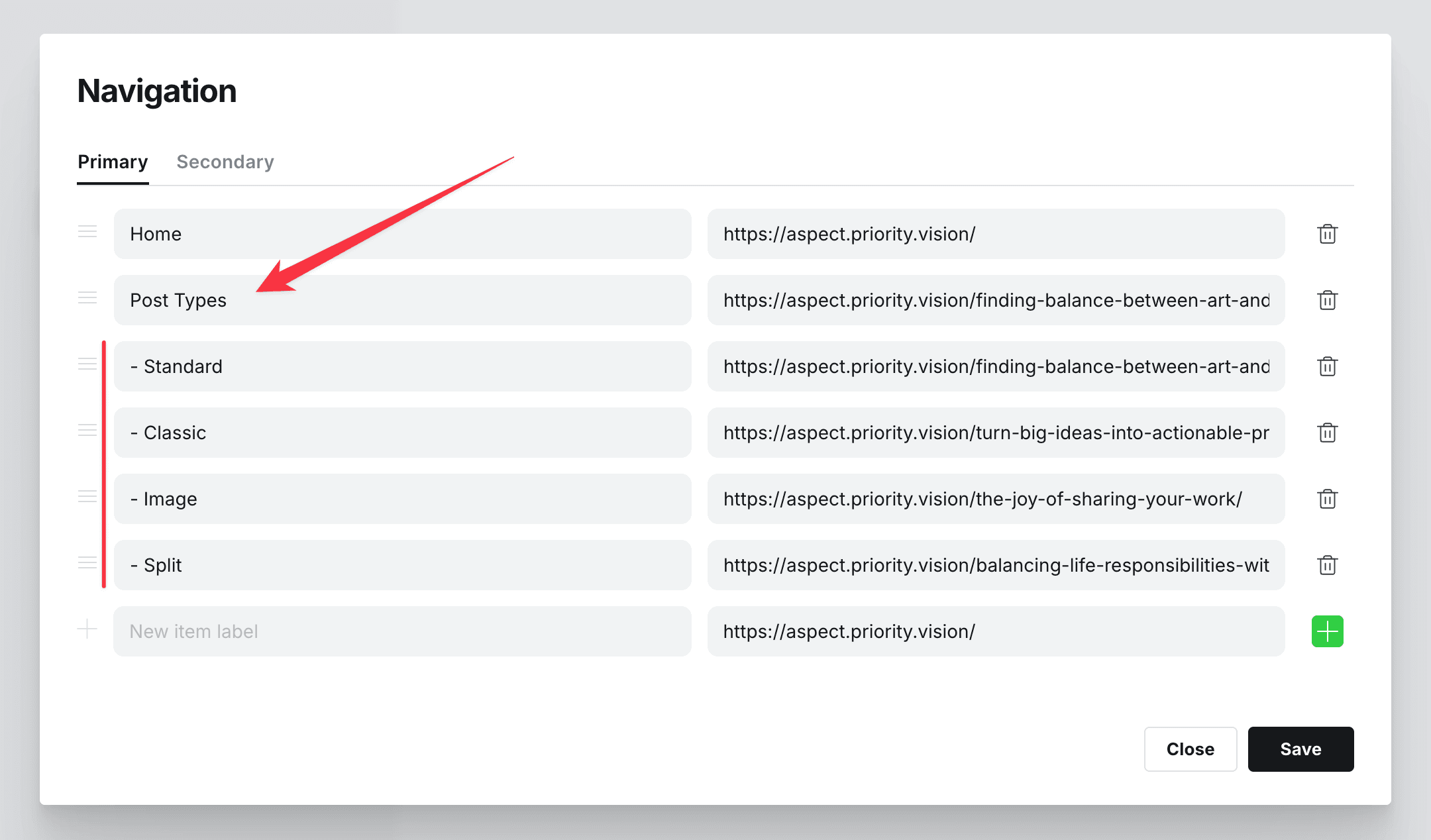
For example, to create a “Resources” dropdown with “Tutorials” and “Documentation” items:
- Add a regular navigation item with label “Resources”
- Add an item with label ”- Tutorials”
- Add an item with label ”- Documentation”
This will create a dropdown menu where “Tutorials” and “Documentation” appear when hovering over or clicking on “Resources”.
Sections
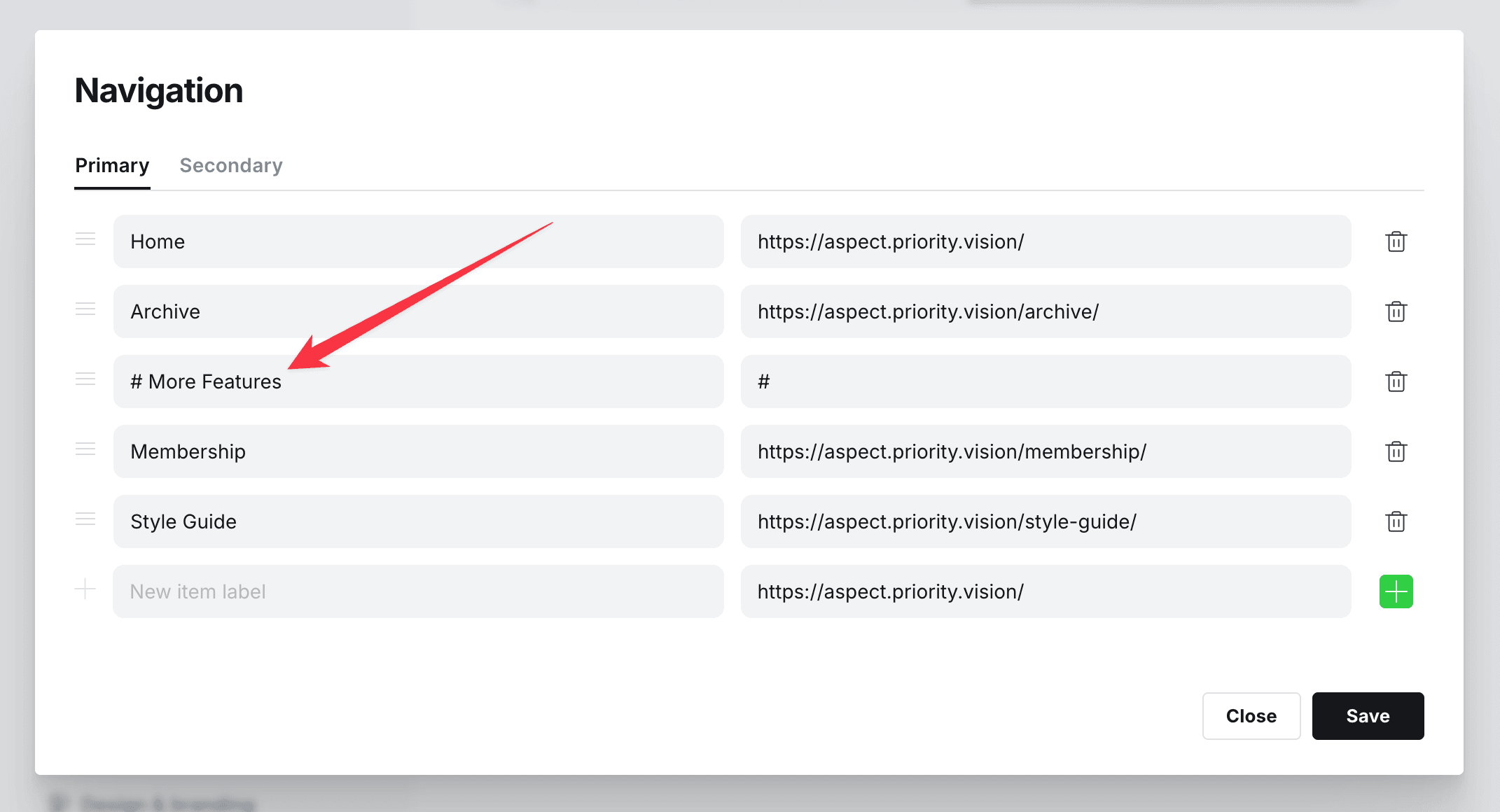
Scope allows you to add sections with labels between navigation items. This is useful to separate different items into sections.
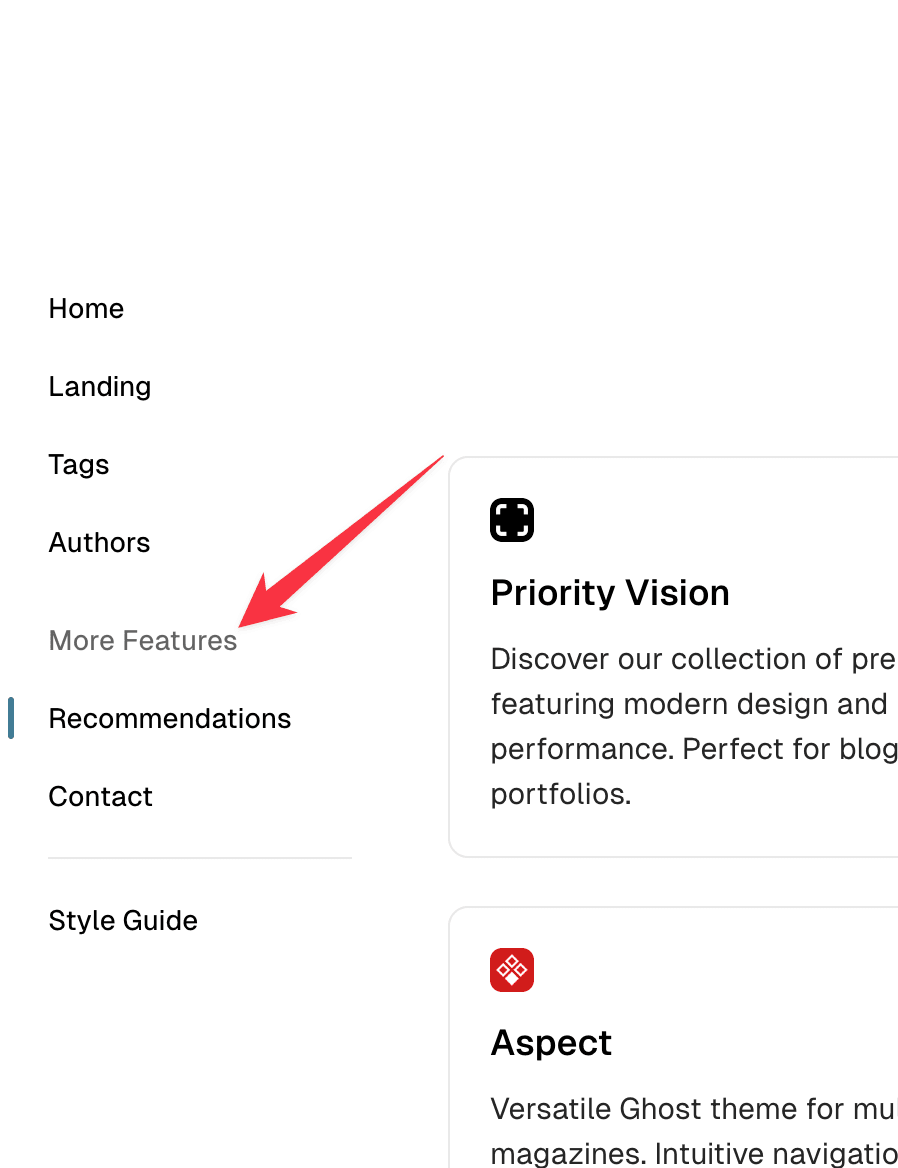
To add the section, create a new item with label starting with # and label. This item will be recognized as a separator.
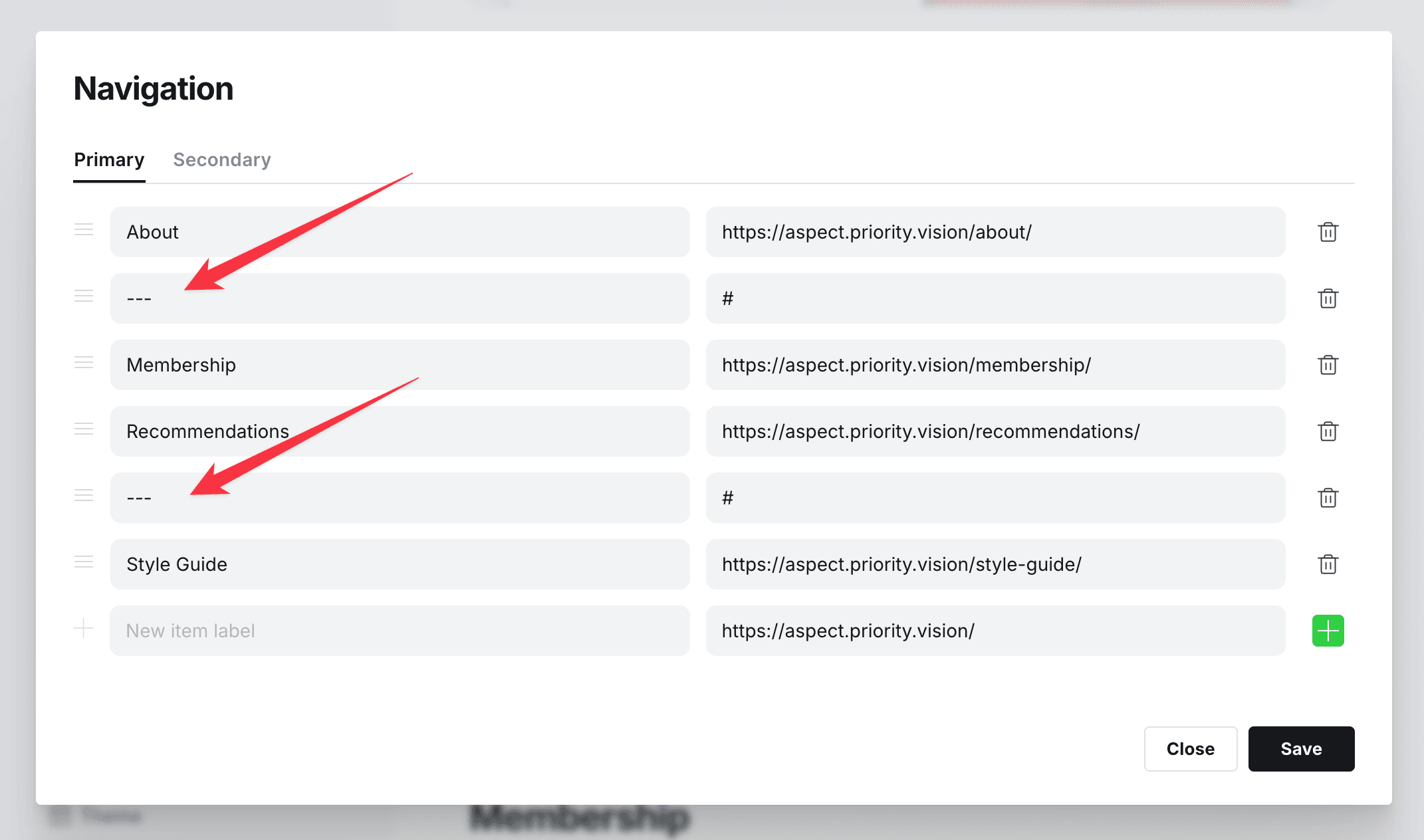
Separators
Scope allows you to add a separator between navigation items. This is useful to separate different sections of your navigation.
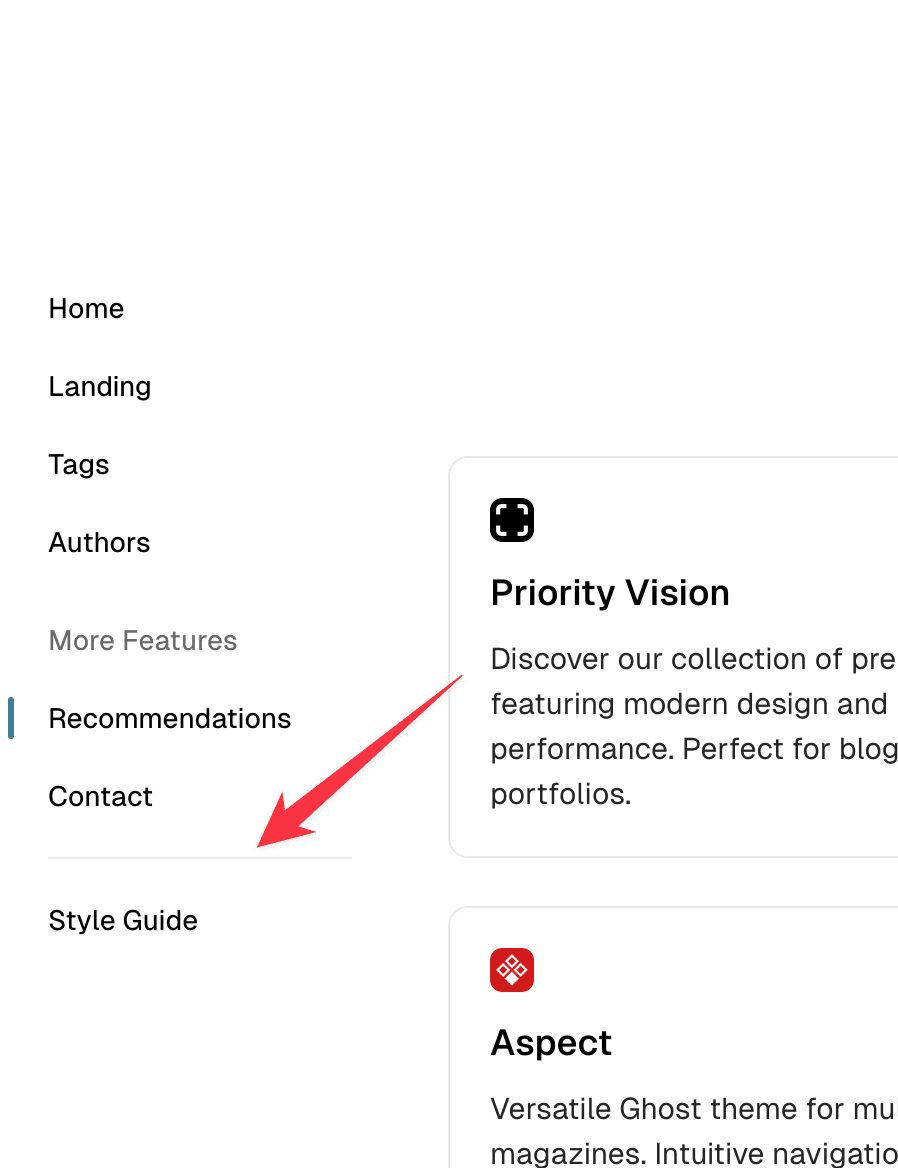
To add the separator, create a new item with label --- and this item will be recognized as a separator.