Typography & Fonts
Ghost offers multiple ways to customize the fonts used in your theme. You can either use Ghost’s built-in typography settings or add custom fonts manually.
Ghost Typography Settings
Ghost provides built-in typography customization through the admin panel. Here’s how to access these settings:
- Go to Settings → Site → Design & branding
- Click Customize
- Change fonts in Typography section

You can easily change both heading and body fonts using the native Ghost interface.
However, if you want to use custom fonts that are not available in Ghost’s curated selection, you can add them manually using Google Fonts or other sources.
To use custom fonts, make sure both “Heading font” and “Body font” are set to “Theme default” in Ghost’s Typography settings. This prevents Ghost from loading its fonts and allows your custom fonts to work properly.
Default Theme Font
By default, Scope uses the self-hosted font named Geist. It is a modern sans-serif font carefully crafted for all screens, providing excellent readability and a clean aesthetic.
Using Custom Google Fonts
If you want to use Google Fonts instead, follow these steps:
Code Injection is required to add custom CSS.
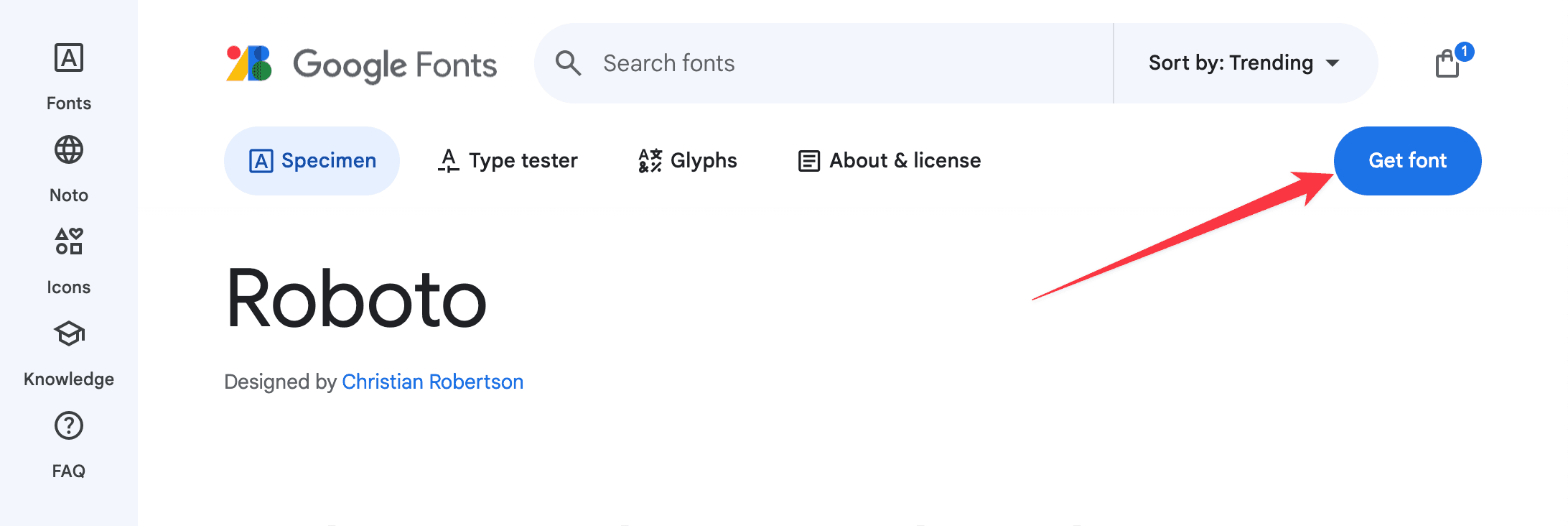
- Open the Google Fonts website and select the font you want to use. For example, we will use Roboto for body and Oswald for headings.
- Add these fonts to collection using the Get font button
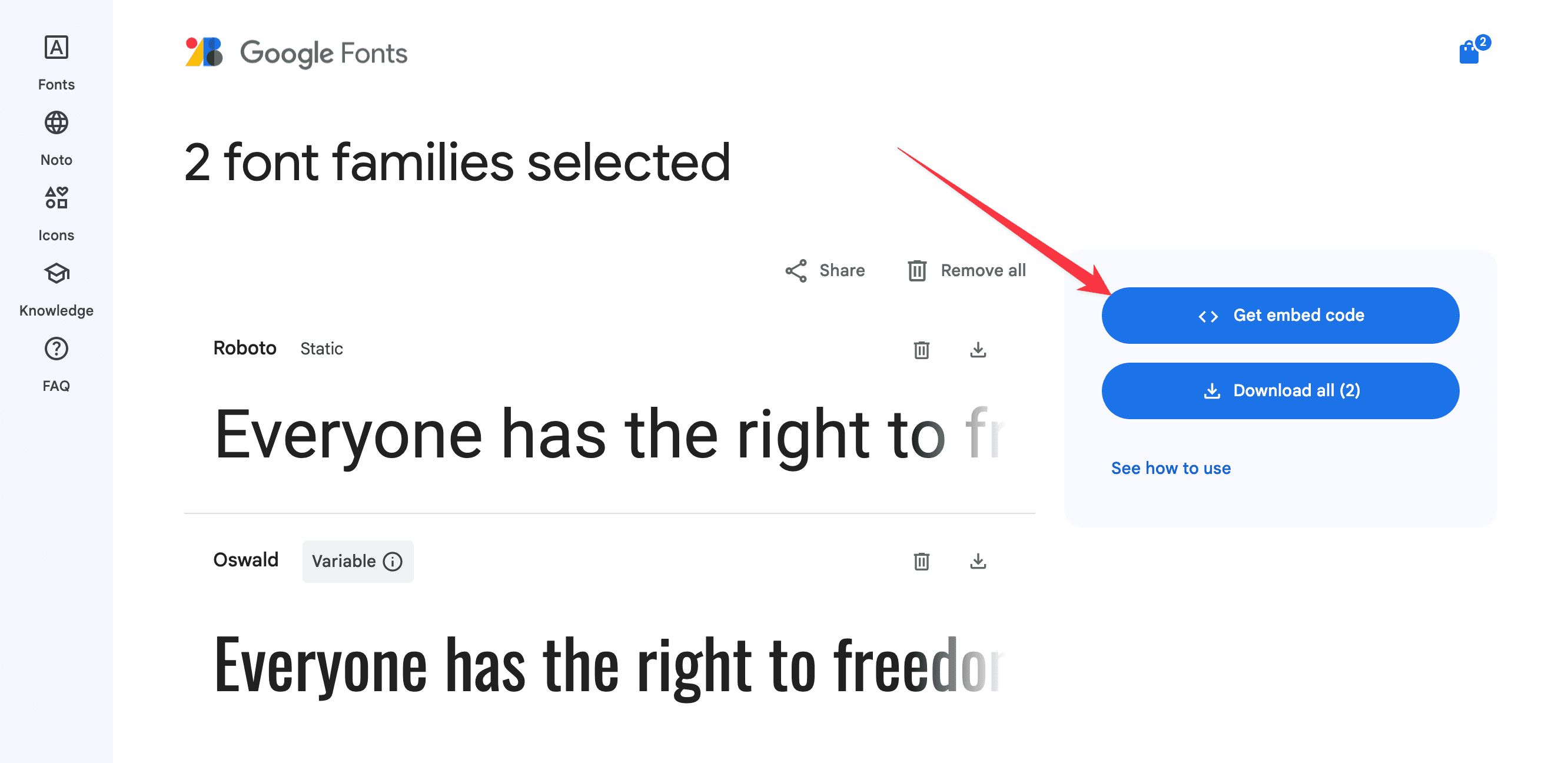
- Click on the Get embed code button
- Select the font weights and styles if you want and copy the code from the Web tab
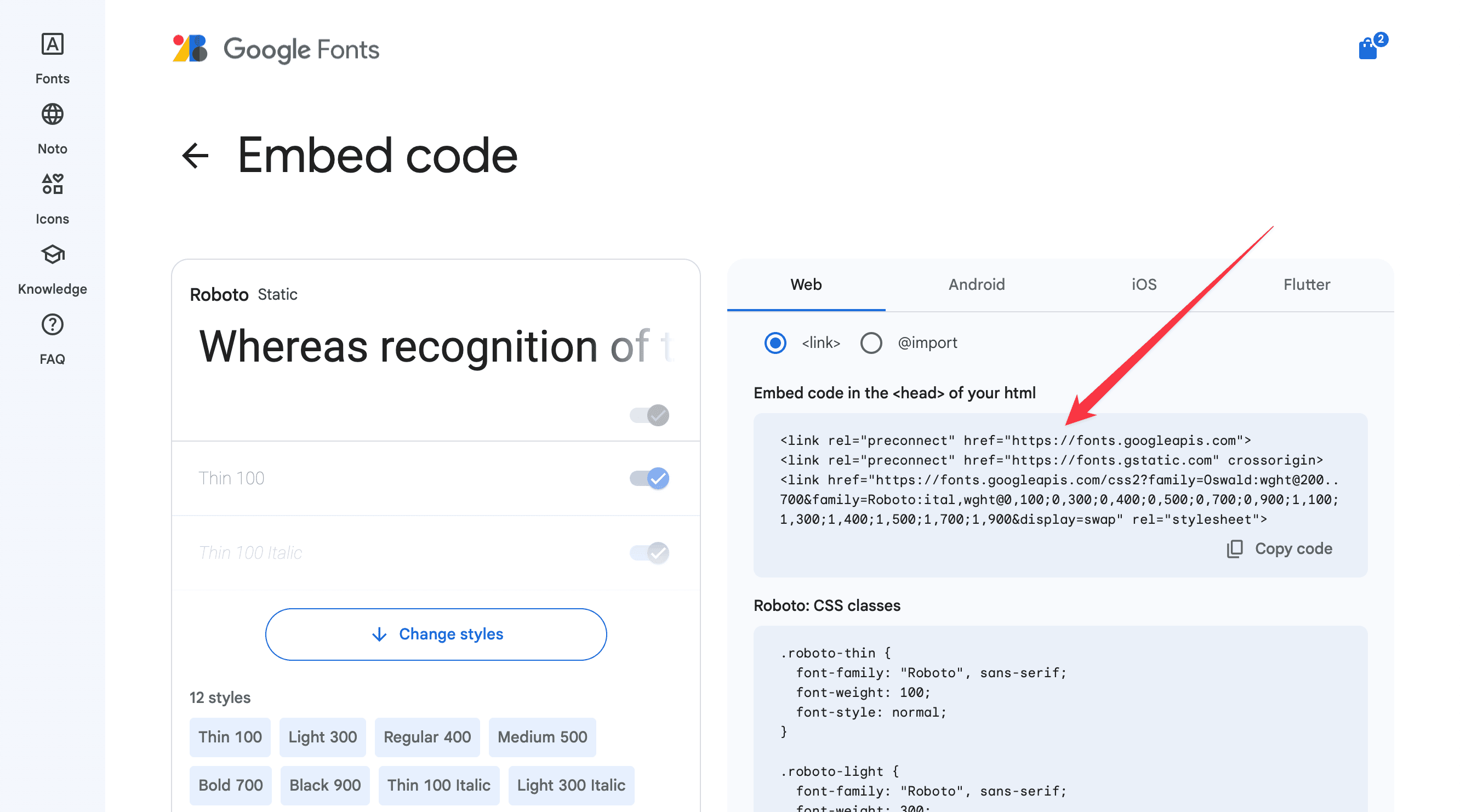
Add the following CSS code:
<link rel="preconnect" href="https://fonts.googleapis.com">
<link rel="preconnect" href="https://fonts.gstatic.com" crossorigin>
<link href="https://fonts.googleapis.com/css2?family=Oswald:wght@200..700&family=Roboto:ital,wght@0,100;0,300;0,400;0,500;0,700;0,900;1,100;1,300;1,400;1,500;1,700;1,900&display=swap" rel="stylesheet">

<style>
  :root {
    --gh-font-body: "Roboto", sans-serif;
    --gh-font-heading: "Oswald", sans-serif;
  }
</style>
Using Custom Font Files
If you want to use custom fonts that aren’t available on Google Fonts or if you prefer to host fonts yourself for better performance and privacy, you can add custom font files directly to your theme.
This method requires direct access to your theme files and basic knowledge of HTML and CSS. Make sure to back up your theme before making any changes.
Step 1: Prepare Font Files
First, make sure you have the font files in the correct formats. For maximum browser compatibility, you should have:
- .woff2 (Web Open Font Format 2) - Modern browsers
- .woff (Web Open Font Format) - Fallback for older browsers
You can convert your fonts to these formats using tools like Font Squirrel’s Webfont Generator or Transfonter.
Step 2: Edit Theme Files
- Download your Scope theme following the instructions in Editing Theme Code guide
- Create a new folder called
assets/fonts/if it doesn’t already exist - Upload your font files to this folder
Your folder structure should look like this:
scope/
├── assets/
│   ├── fonts/
│   │   ├── your-custom-font.woff2
│   │   ├── your-custom-font.woff
│   │   ├── your-custom-font-bold.woff2
│   │   └── your-custom-font-bold.woff
Step 3: Add Font Declarations
Edit the default.hbs file to add your custom fonts, or use Code Injection to add the @font-face declarations and CSS variables.