Landing Page Overview
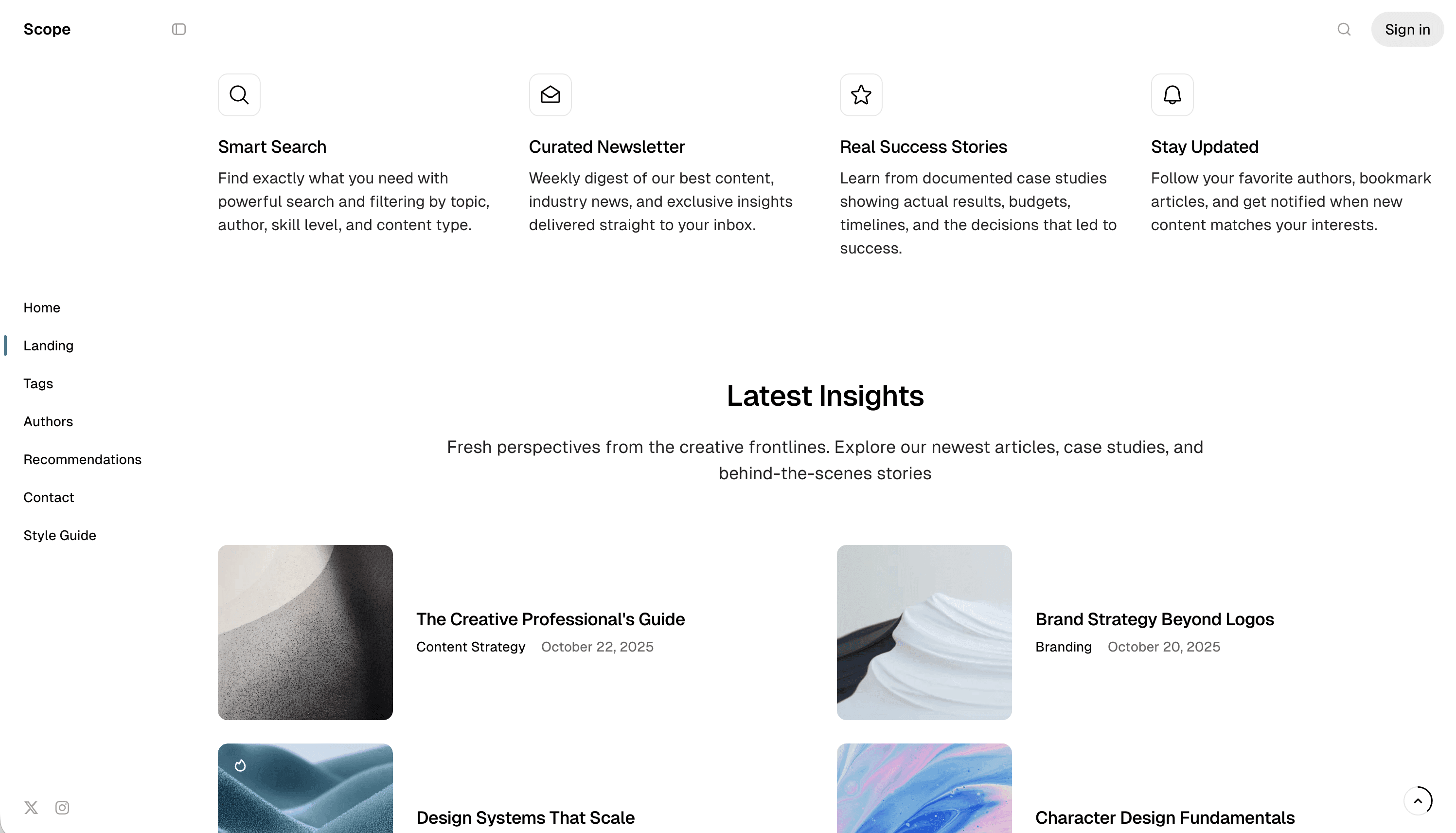
Scope features a powerful landing page system that allows you to create custom, modular landing pages using Ghost’s internal tags. Each section of your landing page is a separate Ghost page, giving you complete control over the content and layout.
How It Works
The landing page system works by collecting all Ghost pages that have the #landing internal tag and displaying them as sections on your homepage. Each page becomes a section, and you can customize the appearance of each section using additional internal tags.
Key Concepts
- Sections are Pages - Each landing page section is a regular Ghost page with the
#landingtag - Order by Date - Sections are ordered by their publish date (newest first)
- Internal Tags - Use internal tags (starting with
#) to control section appearance - Modular Design - Add, remove, or reorder sections without editing theme code
Enabling the Landing Page
To enable the landing page feature, you need to use the landing routes configuration:
- Open the
routes-landing.yamlfile from your theme folder - Upload it to Ghost (see Routes Setup)
routes:
  /:
    template: landing
  /home/:
    template: home

collections:
  /blog/:
    permalink: /{slug}/
    template: blog

taxonomies:
  tag: /tag/{slug}/
  author: /author/{slug}/
When using the landing page routes, your blog posts will be available at /blog/ instead of the root URL. The root URL (/) will display your landing page.
Creating Your First Section
To create a landing page section:
- Log in to Ghost admin
- Go to Pages, click New page
- Set the Page title (this becomes the section heading)
- Add content to the page (text, images, cards, etc.)
- Open the Page settings sidebar
- Add the
#landinginternal tag to Tags - Click Publish
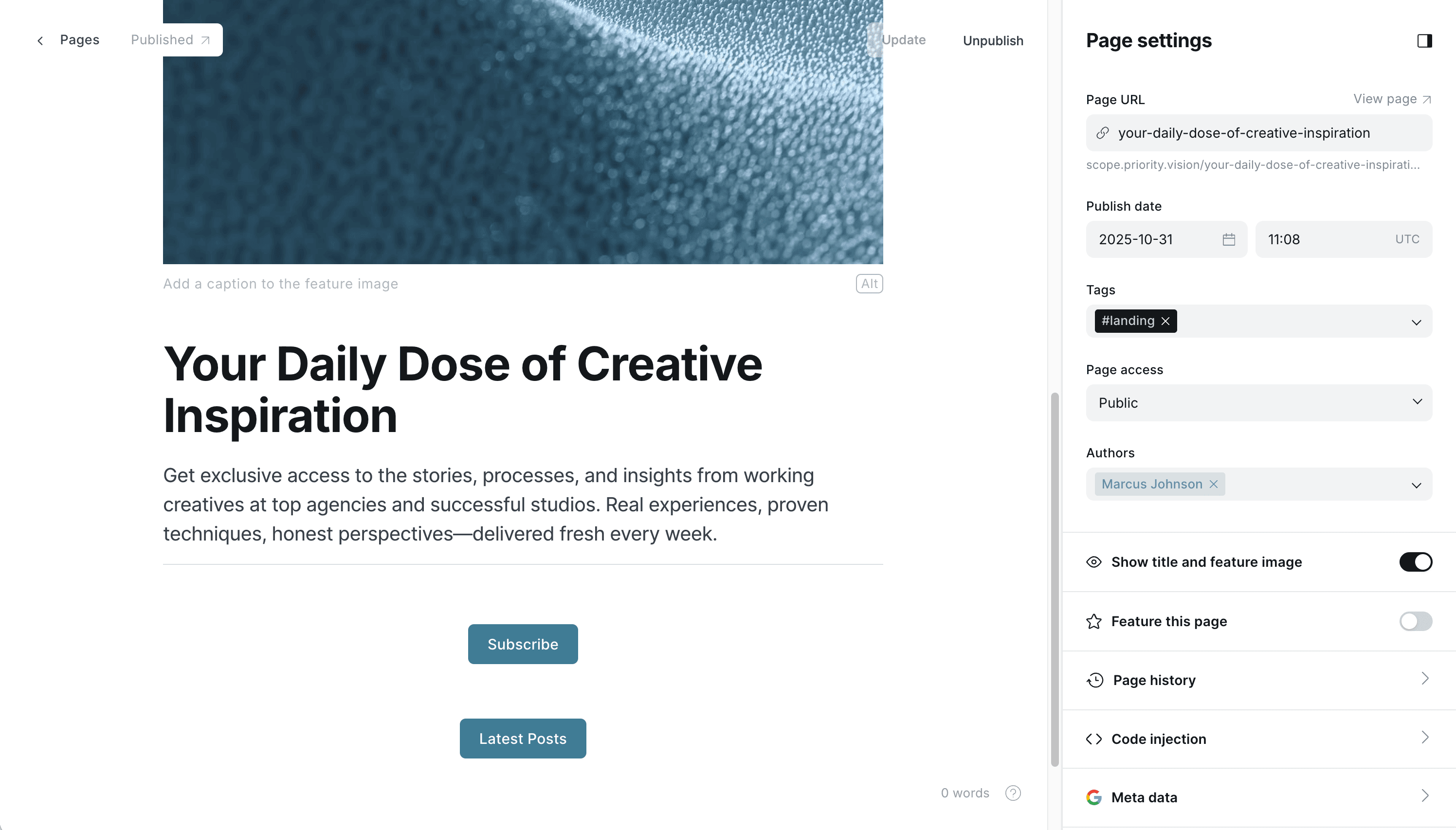
Your new section will now appear on the landing page!
Section Order
Sections are displayed in order of their publish date, with the newest sections appearing first. To reorder sections:
- Open the page you want to move
- Change the Publish date in Page settings
- Save the changes
Remember that internal tags starting with # are not visible to readers and are used only for theme features.
Available Section Types
Scope provides many section types to choose from:
| Section Type | Internal Tag | Description |
|---|---|---|
| Base Section | #landing | Standard content section |
| Brands | #landing-brands | Logo showcase section |
| Featured Posts | #landing-featured-posts | Display featured posts |
| Latest Posts | #landing-latest-posts | Display latest posts |
| Testimonials | #landing-testimonials | Customer testimonials |
| Testimonials Carousel | #landing-testimonials-cards | Testimonials with carousel |
| Features | #landing-features | Feature grid |
| Features Icons | #landing-features-icons | Features with icons |
| Features Split | #landing-features-split | Split layout features |
| Pricing | #landing-pricing | Pricing cards |
Next Steps
- Learn about Base Settings that apply to all sections
- Explore individual Landing Sections documentation