Features Split Section
The Features Split section displays features in an alternating image-text layout. This creates a visually engaging presentation where images and content switch sides.
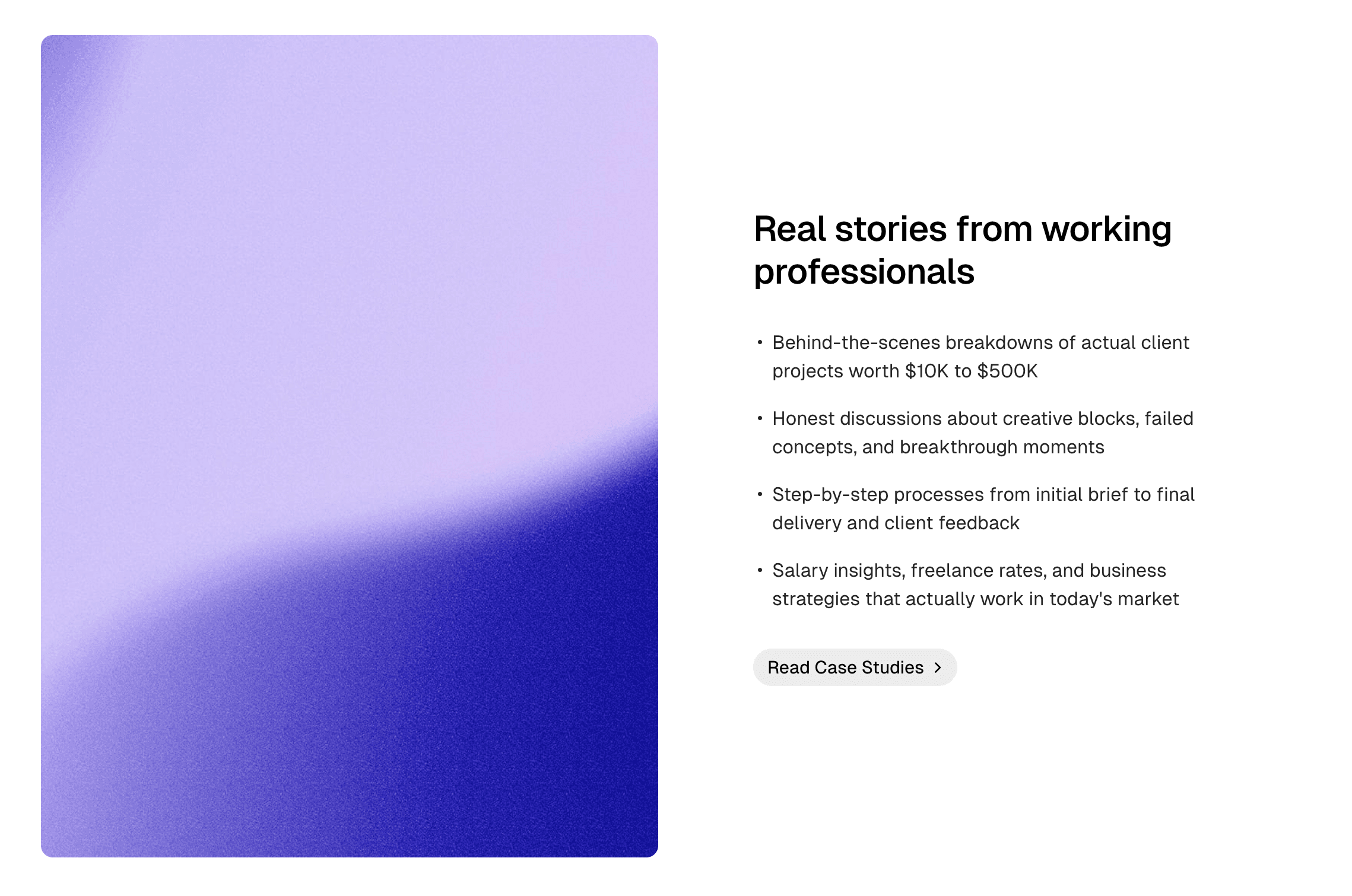
Creating a Features Split Section
- Log in to Ghost admin
- Go to Pages, click New page
- Set the Page title (e.g., “What Makes Us Different”)
- Optionally add an Excerpt for a section description
- Add features with images to the content (see structure below)
- Open the Page settings sidebar
- Add these internal tags:
#landing,#landing-features-split - Click Publish
Required Tags
| Internal Tag | Description |
|---|---|
#landing | Required for all landing sections |
#landing-features-split | Enables the alternating split layout |
Layout Options
Control how features alternate:
| Internal Tag | Description |
|---|---|
#landing-features-split-even | Image on left for even items |
#landing-features-split-odd | Image on left for odd items |
#landing-features-split-end | Image always at the end |
Default Behavior
Without a layout tag, features alternate automatically:
- 1st feature: Image left, text right
- 2nd feature: Text left, image right
- 3rd feature: Image left, text right
- And so on…
Even Layout
#landing
#landing-features-split
#landing-features-split-even
Forces images to the left on even-numbered features.
Odd Layout
#landing
#landing-features-split
#landing-features-split-odd
Forces images to the left on odd-numbered features.
End Layout
#landing
#landing-features-split
#landing-features-split-end
Places images at the end (right side on desktop) for all features.
Adding Split Features
Add features using Product Cards:
- Click the
+button in the editor - Select Product
- Upload your feature image
- Add a Title for the feature name
- Add a Description for the feature details
- Optionally add a Button with a link for call-to-action
- Repeat for each feature
The layout will automatically alternate between image-left/text-right and text-left/image-right.
Optional Settings
Combine with base settings:
| Internal Tag | Effect |
|---|---|
#landing-hide-title | Hide the section heading |
#landing-container-wide | Wider split layout |
#landing-16-9 | Widescreen aspect ratio for images |