Testimonials Section
The Testimonials section displays customer quotes and reviews in a carousel format with navigation arrows. Perfect for showcasing social proof on your landing page.
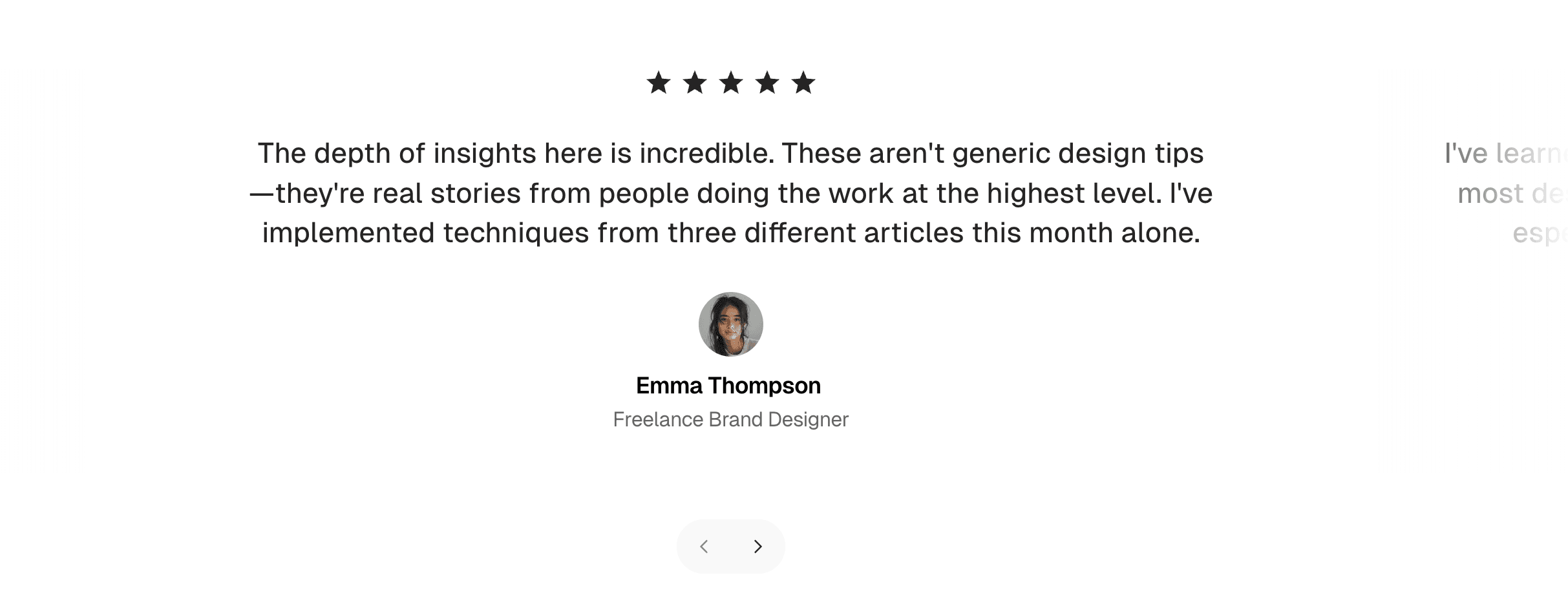
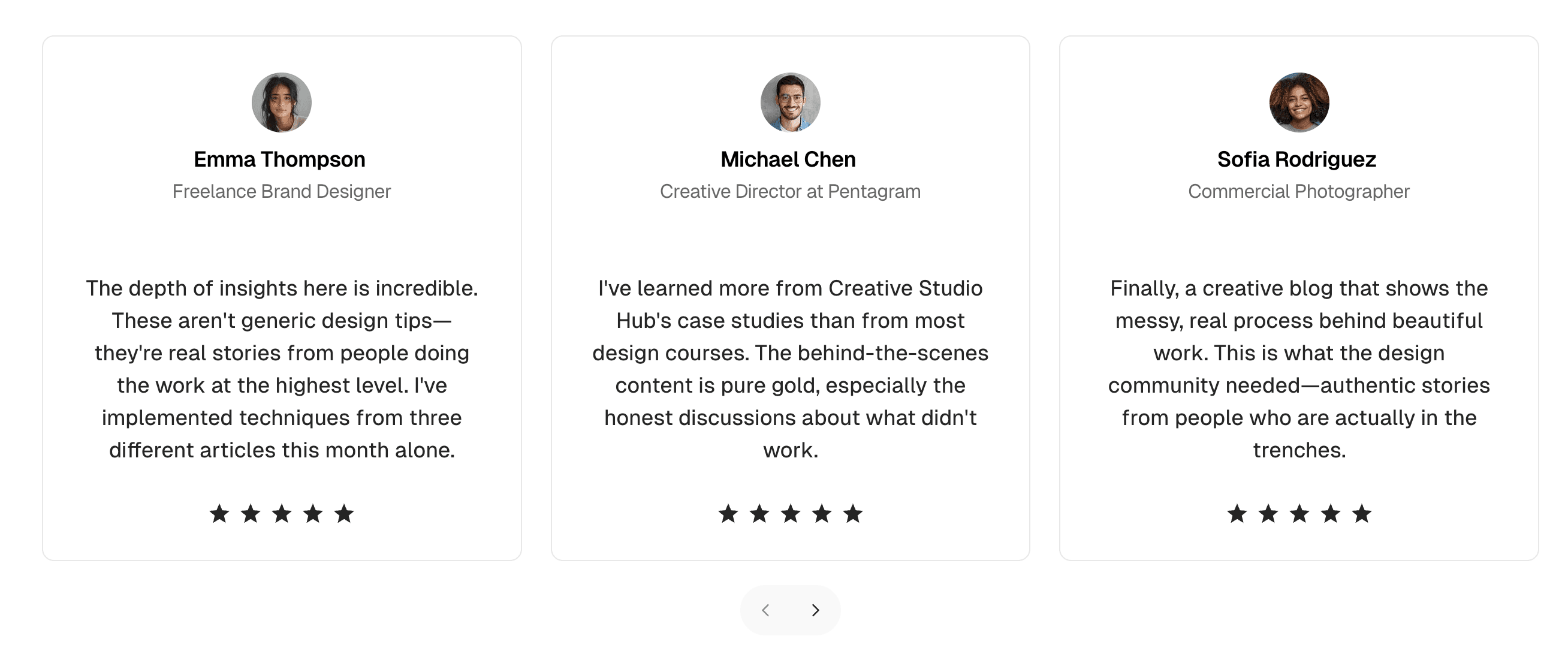
Creating a Testimonials Section
- Log in to Ghost admin
- Go to Pages, click New page
- Set the Page title (e.g., “What Our Customers Say”)
- Optionally add an Excerpt for a section description
- Add testimonials to the content (see structure below)
- Open the Page settings sidebar
- Add the required internal tags (see below)
- Click Publish
Carousel Styles
Choose between two visual styles:
| Internal Tag | Style | Best For |
|---|---|---|
#landing-testimonials | Horizontal scrolling | Text-focused quotes with subtle navigation |
#landing-testimonials-cards | Card carousel | Visual testimonials with prominent navigation |
Required Tags
Both styles require:
#landing
#landing-testimonials
Or:
#landing
#landing-testimonials-cards
Adding Testimonials
Add testimonials using Product Cards:
- Click the
+button in the editor - Select Product
- Upload a customer photo
- Add the customer name as the Title
- Add the testimonial quote in the Description
- Include role/company details in the description
- Optionally add a Button with a link (e.g., “Read Full Story”)
- Repeat for each testimonial
Both carousel styles automatically add navigation arrows for scrolling through testimonials.
Navigation Controls
The testimonials section includes built-in navigation:
- Previous/Next arrows - Click to navigate between testimonials
- Horizontal scrolling - Users can also scroll horizontally on touch devices
Optional Settings
Combine with base settings:
| Internal Tag | Effect |
|---|---|
#landing-hide-title | Hide the section heading |
#landing-container-wide | Wider testimonial display |