Blog Page
When using the landing page routes configuration, your blog posts are available at /blog/ instead of the root URL.
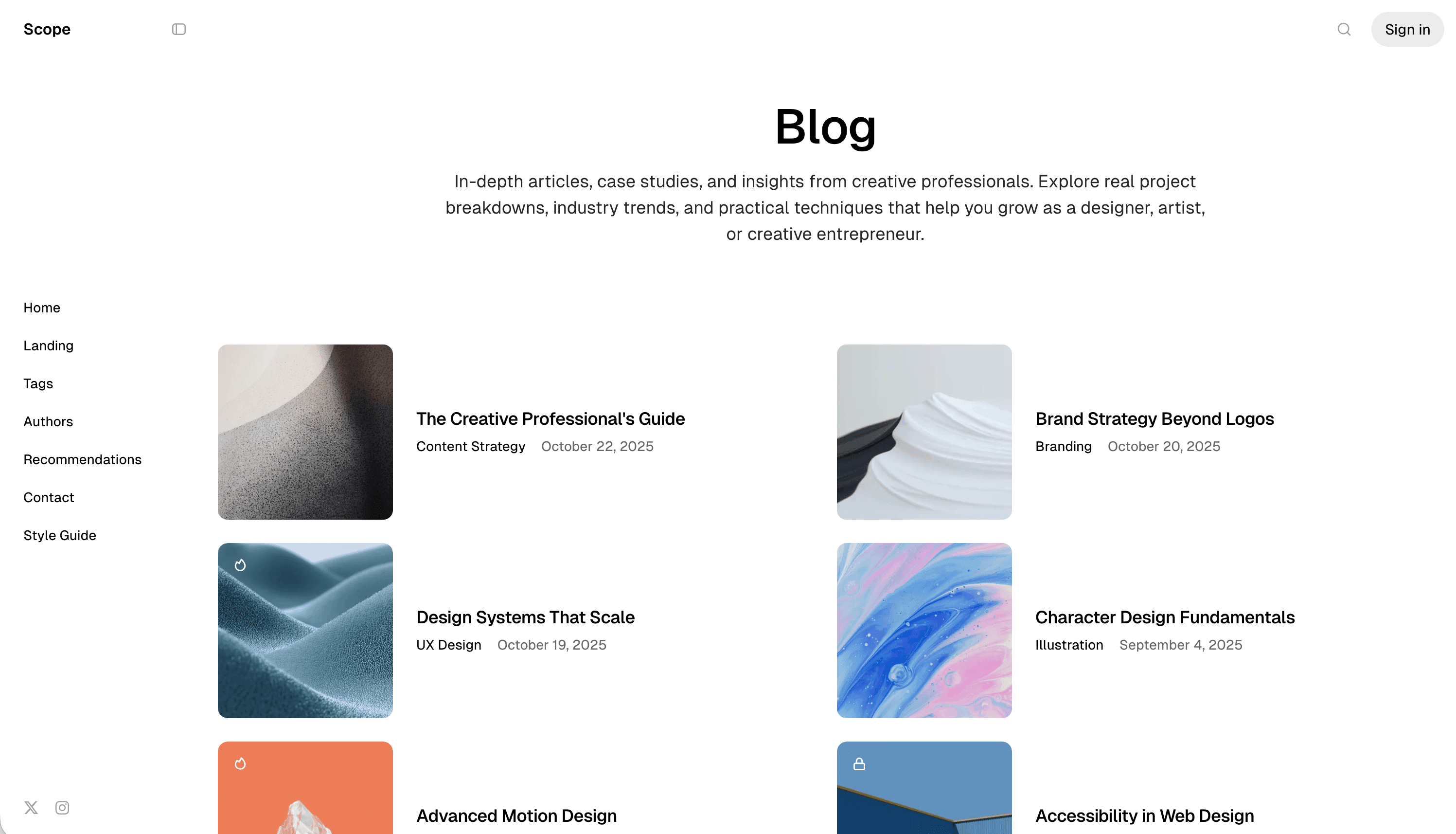
Accessing the Blog
When you enable the Landing Page feature using routes-landing.yaml, the URL structure changes:
| Route | Content |
|---|---|
/ | Landing page |
/blog/ | Blog posts listing |
/{post-slug}/ | Individual posts |
If you’re not using the landing page feature (using the default routes.yaml), your blog posts will be at the root URL (/) as usual.
Customizing the Blog Page
To customize the blog page title, description, and featured image, you need to:
- Create a page in Ghost with the slug
blog - Uncomment the
dataproperty in your routes file
Step 1: Create the Blog Page
- Log in to Ghost admin
- Go to Pages, click New page
- Set the Page title (e.g., “Blog” or “Latest Posts”)
- Optionally add an Excerpt for the page description
- Optionally add a Featured image
- Open the Page settings sidebar
- Specify the Page URL to
blog - Click Publish
Step 2: Enable Data Property
Edit your routes-landing.yaml to uncomment the data property:
collections:
  /blog/:
    permalink: /{slug}/
    template: blog
    data: page.blog # Uncomment this line
Upload the updated routes file to Ghost.
Adding Blog to Navigation
Don’t forget to add a link to your blog in the navigation:
- Go to Settings → Navigation
- Add a new item with label “Blog” and URL “/blog/”